Before buying Shadowrocket, confirm the product listing, then review its price and compatibility. This guide walks you through checking the developer, icon, and app ID, explains what to do if search results differ or a price appears after purchase, and distinguishes the app purchase from your own connection service.
1. Know what to check before buying
When you search for Shadowrocket on the App Store, don't rely on the first result, a title containing “Little Rocket,” or a rocket in the icon. Search ranking does not verify an app's identity, and a similar name does not make it the same product. Open the product page, check the developer details, and verify the app ID shown in its link.
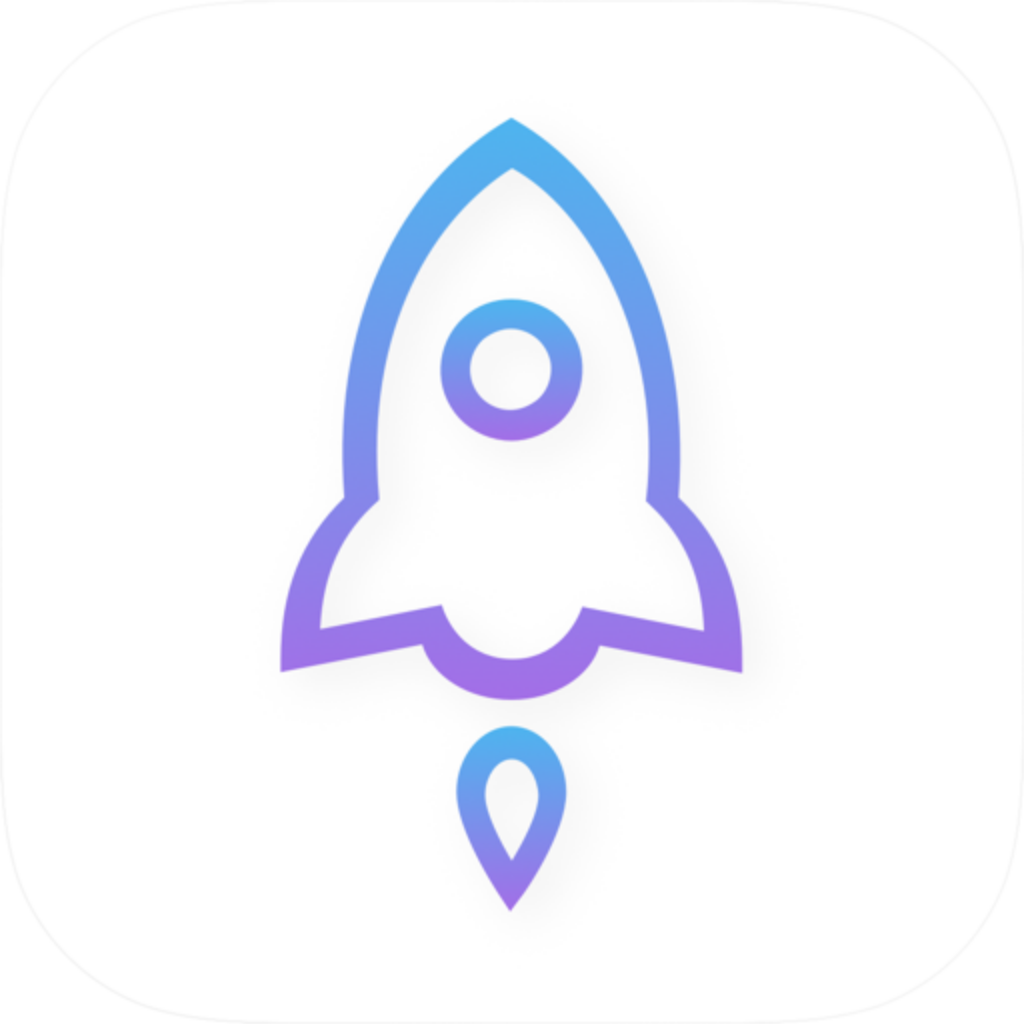
Shadowrocket is developed by Shadow Launch Technology Limited and has app ID 932747118. Check both alongside the official icon. The name helps you find a candidate; the developer and app ID confirm its identity, while the icon provides a visual cross-check. None of these checks replaces another.
Don't use review counts, chart rankings, or search snippets to verify an app. These details can't replace product identity fields or establish whether an app with a similar name is Shadowrocket.
2. Verify the App Store product page in five steps
Follow these steps when preparing to buy or redownload the app on an iPhone or iPad, or when helping a family member verify it. Confirm the app's identity before paying; don't buy an uncertain search result just to check it.
-
Open the product page
In the App Store, enter
Shadowrocketin Search and tap the app name to open its product page. Don't make a decision from the search results alone, and don't mistake a Chinese nickname in the search term for the official product name. -
Check the developer name
Check the developer details on the product page, then verify the relevant information in the Information section below. The name should be
Shadow Launch Technology Limited. Read the full name; a partial match such as “Shadow” or “Technology” isn't enough. -
Compare the official icon
Compare the product page icon with the official icon below. Look for the white background, blue-violet outlined rocket, and overall shape. Similar colors, a similar outline, or added text are not proof that it's the same app.
-
Check the app ID
Use the product page's share feature to copy the link, then inspect its path in a text editor. Shadowrocket's product path contains
id932747118. Check every digit—not just the last few. -
Review purchase eligibility
Once all three identity details match, review the price, compatibility, and purchase eligibility. Refer to the App Store page for system requirements. Check your current store account and device eligibility before completing the purchase or download through the App Store.
3. Find the app ID and avoid confusing it with other numbers
The app ID is the numeric identifier in an App Store product link. It is not an app version, order number, or device account detail. Shadowrocket's app ID is 932747118. The product name can help you find the listing, but to verify a link, check the full number after id.
https://apps.apple.com/us/app/shadowrocket/id932747118The text above shows the product address used for verification. A link shared from the App Store may include extra query parameters, and its regional path may differ. First check that the domain is apps.apple.com, then look for id932747118 in the product path. Seeing the same number in text from an unknown source doesn't verify the link.
| Check | Expected details | Common mistake |
|---|---|---|
| Developer | Shadow Launch Technology Limited | Checking only for one matching word in the name |
| App ID | 932747118 | Mistaking an order number or app version for the app ID |
| Icon | The official icon shown on this site | Verifying it based only on a rocket theme or blue-violet colors |
| Price and compatibility | Refer to the App Store page | Relying on a price or system requirement from an older article |
Bottom line: Pause if any details don't match
If either the developer or app ID differs, don't proceed with the purchase. Return to this site's genuine app verification page to reopen the product listing and compare the same page. Don't piece together details from multiple search results based on memory.
4. Troubleshoot missing results or unexpected purchase status
If the expected result doesn't appear, don't buy an app with a similar name instead. Check that you entered the full English product name, then open the App Store from this site's genuine app verification page. If the store says the app isn't available in your current region, follow the store's notice. Don't buy a different app as a substitute.
- Several results have similar names: Open each product page and check the developer and app ID. Don't decide based on title length, ranking, or icon color.
- The shared link doesn't match the search result: Return to the product page you intend to buy and share its link again. You may have copied a different search result. You don't need to send anyone your account information to verify a link.
- You bought the app before, but a price still appears: First check which Apple Account is currently used for Media & Purchases in the App Store, then review that account's purchase history. Check the account signed in on the device separately from the account used for store purchases.
- You can't find the app after switching devices: Check the new device's compatibility, the account used for the purchase, and the purchase history. Refer to the App Store page for cross-device purchase eligibility; don't assume the app is eligible on every device just because you're using the same account.
- The icon looks similar, but the developer is different: Stop the purchase and verify the official product listing again. A similar icon does not override a mismatch in the developer details.
Shadowrocket is primarily for iPhone and iPad. Compatibility with Mac, Apple TV, and Apple Vision can also be checked on the same store page. Refer to the App Store page for pricing, system requirements, compatibility, and universal purchase eligibility.
5. Keep the app purchase separate from importing your subscription
Shadowrocket is a closed-source commercial app sold as a one-time purchase. Buying the app does not include a connection service. After verifying the genuine app, you'll still need server details or a subscription from a service you already use. This site does not provide, sell, or recommend nodes or subscription services.
After opening the app, Home, Config, and Settings refer to connection entries, configuration files, and app settings, respectively. These interface labels can help you follow a guide, but they don't verify the product's identity. Another app using the same English terms is no reason to skip the developer and app ID checks.
- Have your own subscription link ready and treat it as sensitive information. Don't post it in comments, screenshots, or public support requests.
- In Home, tap “+” in the upper-right corner, set Type to Subscribe, enter your own subscription URL, and save. Then check the imported entry.
- Make sure the entry is complete before selecting it to connect. If prompted to authorize a system VPN configuration, read the system message before confirming.
- Go to Config to edit configuration files, or Settings → On Demand to review on-demand connection settings. When troubleshooting for the first time, check manual connections before adjusting automatic triggers.
6. Global Routing affects connection behavior, not app identity
After verifying the app and importing your own connection entry, check Global Routing if needed. The options below describe three common routing modes in Shadowrocket. They can help explain different connection results during initial setup, but they don't establish whether a search result is genuine.
Config
RecommendedUse rules in the active configuration to choose how traffic is handled. Check the configuration's source and contents first, especially the policies for DOMAIN-SUFFIX, IP-CIDR, GEOIP, and FINAL. Don't assume every configuration routes the same types of requests in the same way.
Best for: Using a verified configuration for everyday rule-based routing
Proxy
Route traffic through the proxy by default to narrow down issues caused by rule-based routing. This won't restore a failed connection entry or guarantee that the server can handle every type of traffic.
Best for: Checking whether a routing rule is causing an issue when you already have a working connection entry
Direct
Use direct connections to check how your device performs on its current network. Switching to Direct doesn't verify that your subscription works or prove that the proxy route is functioning.
Best for: Comparing against a direct connection on your current network to distinguish basic network issues from proxy path issues
Global Routing also includes Scene; its behavior depends on the scene configuration. Whichever mode you use, treat “Is this the correct store listing?”, “Is the subscription valid?”, and “Is the routing policy behaving as expected?” as separate questions, and troubleshoot them in that order. For more help, see the troubleshooting manual instead of repeatedly buying the app or changing settings without a clear reason.